
Here’s a number that stopped me mid-scroll: 76.5% of U.S. K-12 teachers use YouTube instructionally, averaging nearly 18% of yearly instructional time (Educational Researcher, June 2026). We all have that perfect 8-minute explainer — and then spend Sunday turning it into a lesson plan and quiz by hand. Gallup’s October survey found 59% of K-12 educators used AI last year, and two-thirds say it freed time for the parts of teaching they value. This is exactly where that time goes.
If you’re looking for an AI lesson plan generator from YouTube video, the short answer is yes — these tools turn a video into a lesson plan, quiz, or worksheet in minutes. I opened all six serious options (Brisk, MagicSchool, EdCafe, Eduaide, Diffit, and Twee), walked through each one’s YouTube feature, pricing page, and help docs, and compared exactly what each one does with a video link. The catch nobody mentions: they all read the video’s captions, not the video itself — so no captions, no lesson plan.
In this guide you’ll find: the three ways these tools take in a video, a side-by-side verdict table for all 6, honest free-plan limits, a 10-minute paste-to-Classroom workflow, subject-by-subject picks, the caption caveat that breaks everything, and a privacy note for your district’s policy.
- Brisk Teaching — most generous free tier (free forever, works on the YouTube page via extension). Best all-rounder for a full lesson set.
- MagicSchool — paste a link, get leveled questions in seconds. Free, but the video must have captions.
- EdCafe — the only one where students watch the video beside the quiz, with instant feedback. 100 free generations a month.
- Eduaide — YouTube feature is Pro-only ($49.99/year). Skip unless your school already pays.
- Diffit — turns videos into leveled readings, not quizzes. A gem for differentiation and ESL.
- Twee — built for language teachers (transcripts, gap-fills, discussion questions); video tools sit behind Pro.
I opened each tool’s official site in October 2026 and walked through its YouTube feature page, pricing page, and help docs — comparing the input method, exact free-plan terms, and export options. What I did not do: run a live video through each generator end-to-end (several need educator accounts I don’t have — I’d rather tell you that than fake it). Anything unverifiable on an official page is marked as such below.
First, the thing nobody tells you: they read captions, not video
Every tool below works the same trick: it grabs the video’s transcript (the captions file) and feeds that text to the AI. It is not watching your video. That’s why YouTube’s own help pages matter here: a full transcript only exists for videos that have captions, and auto-captions aren’t guaranteed — they fail on unsupported languages, very long videos, poor audio, and overlapping speakers.
The tools also differ in how the video gets in. Paste-the-link (MagicSchool, EdCafe, Eduaide on Pro) is simplest. Browser-extension overlay (Brisk) puts the tool right on the YouTube page — fastest when you’re already browsing, Chrome/Edge only. Paste-the-transcript-yourself (Diffit’s documented route, MagicSchool’s fallback) is clunky but most reliable. A demo walkthrough posted about two weeks ago recommends the transcript-paste for better questions — cleaning auto-caption garbles first is the difference between a decent quiz and one your 3rd-period class will roast you for.
So before anything else: open your video, click the three dots under it, and check “Open transcript.” Nothing there? No tool on this list can help with that video. MagicSchool is the only one honest enough to say it outright: “If the creator of the YouTube video has not enabled captions, the tool will not work.”
The 6 tools, side by side
| Tool | How the video goes in | What you get out | Free-plan YouTube terms | Cheapest paid | Exports |
|---|---|---|---|---|---|
| Brisk Teaching | Chrome/Edge extension, on the YouTube page | Quiz (up to 20 Qs), lesson plans, guided notes | Free forever; no published per-day video count | No individual tier — institutional only | Google Doc/Form, Word, Kahoot!, Nearpod |
| MagicSchool | Paste link, video ID, or transcript | Open-ended, MCQ, or assessment questions | Forever free; generation cap not published | Plus $12.99/mo or $8.33/user/mo annual | One-click Google/Microsoft exports, all plans |
| EdCafe | Paste YouTube link | MCQs students answer while watching; also lesson plans, flashcards, slide decks from the link | 100 AI generations/month; YouTube not listed as Pro-only | Pro $7.99/mo billed annually | Shareable link + QR, Google Classroom, Microsoft Teams |
| Eduaide | Add video as source material | Any resource grounded in the transcript (lesson plan, worksheet, rubric…) | YouTube source = Pro only | Pro $49.99/year | Google Docs, DOCX, Google Forms, PDF, plain text |
| Diffit | Manual transcript paste (direct YouTube flow deprecated) | Leveled reading + vocab + comprehension (not a quiz tool) | Free: PDF/print/share; content kept 90 days | Individual $14.99/mo or $149.99/yr | Free: PDF. Paid adds Google Docs/Slides/Forms/Classroom, Word, PowerPoint |
| Twee | Paste YouTube link or upload media | Transcript, summaries, gap-fill listening, discussion questions | Media tools carry a Pro badge — unavailable on free | Pro $15/mo or $10.50/mo annual | PDF, Google Forms, Google Docs, shareable link |
Which tool produces which output
If you already know the format you need, start here — every cell below comes straight from the tool sections above.
| Tool | Slides | Worksheet | Quiz | Graded reading |
|---|---|---|---|---|
| Brisk Teaching | — | — | ✓ Up to 20 questions | — |
| MagicSchool | — | — | ✓ Open-ended, MCQ, assessment | — |
| EdCafe | ✓ Slide decks | — | ✓ MCQs answered while watching | — |
| Eduaide | — | ✓ | — | — |
| Diffit | — | — | — | ✓ Leveled reading |
| Twee | — | — | — | — |
Two honest footnotes: Diffit states outright that it is not a quiz tool — readings are its whole job. And Twee’s outputs (transcripts, summaries, gap-fill listening, discussion questions) don’t fit these four buckets; it’s built for language practice instead.
Brisk Teaching: the free-tier champion
Brisk is the one I’d tell a colleague to install first: the free plan is genuinely free forever, and the YouTube workflow lives where you need it. Open any YouTube video in Chrome or Edge, click the little Brisk “B,” hit Create, and pick Quiz Generator or a lesson-plan tool. Set grade level, question count and type — up to 20 questions at once, in 50+ languages, aligned to Common Core, NGSS, or your state standards.
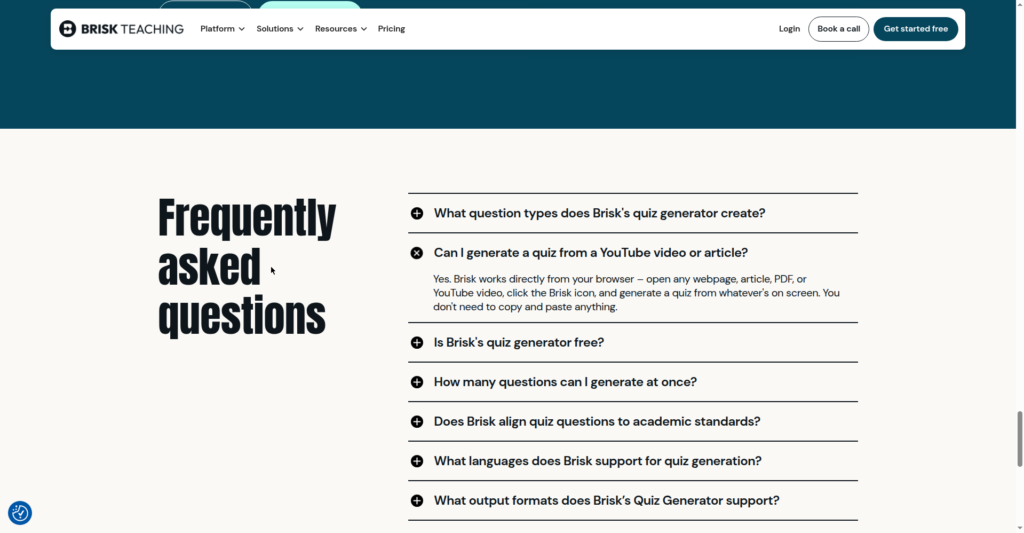
New signups get a 14-day premium trial that drops onto Free Forever automatically — no card ambush. The honest gap: Brisk publishes no per-day video count for the free tier. There’s no individual paid tier anymore — premium is institutional pricing, so your mileage depends on your admin. Exports are the strongest here: Google Doc, Google Form, Word, Microsoft Form, Kahoot!, Nearpod, Wayground. If your quizzes live in Kahoot!, Brisk is the obvious pick.
MagicSchool: fastest link-to-questions
MagicSchool’s YouTube Video Questions tool is the purest version of this workflow: paste a link (or video ID, or the transcript itself), pick a grade level and question count, and get open-ended, multiple-choice, or assessment questions with standards alignment. One of 80+ tools on the Forever Free plan, with one-click Google and Microsoft exports on every plan — free included.
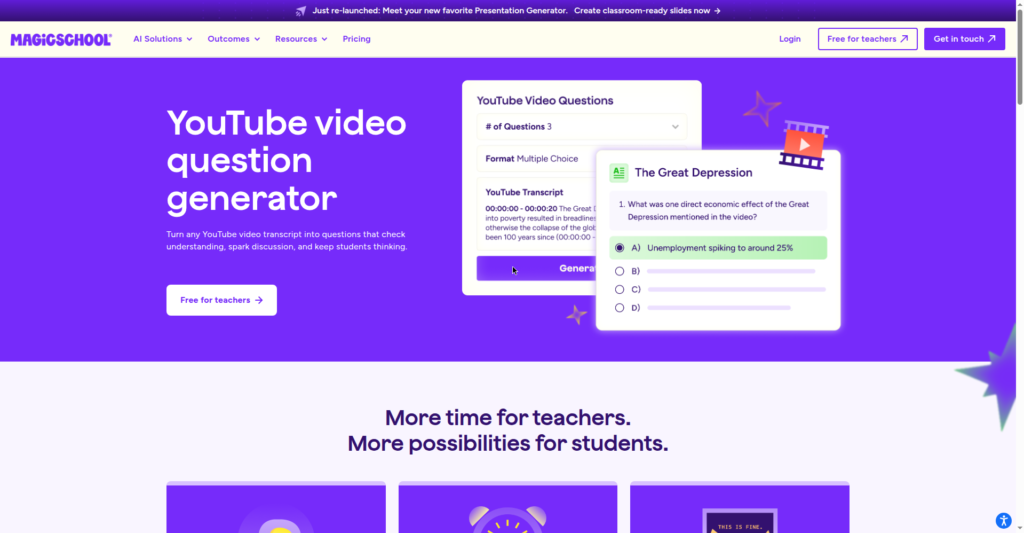
Two caveats from their own pages. First, the captions rule — no captions, no questions, full stop. Second, MagicSchool publishes no free generation cap; third parties say it’s limited monthly, but that’s unofficial. A May 2026 help update added guidance for pasting the transcript when the link fails — link-paste fails often enough to need documenting. Keep the transcript tab open. Plus ($12.99/month, or $8.33/user/month billed annually) buys unlimited generations — worth it only if you’re generating daily.
EdCafe: the only one students use with the video
EdCafe does something none of the others do: students stream the YouTube video alongside the quiz questions, with instant personalized feedback as they answer. Less “watch then quiz,” more guided viewing. Teachers can edit questions, add images, reorder, and add their own; the same link can also feed its lesson-plan, flashcard, slide-deck, and reading-activity generators, in 39 languages.
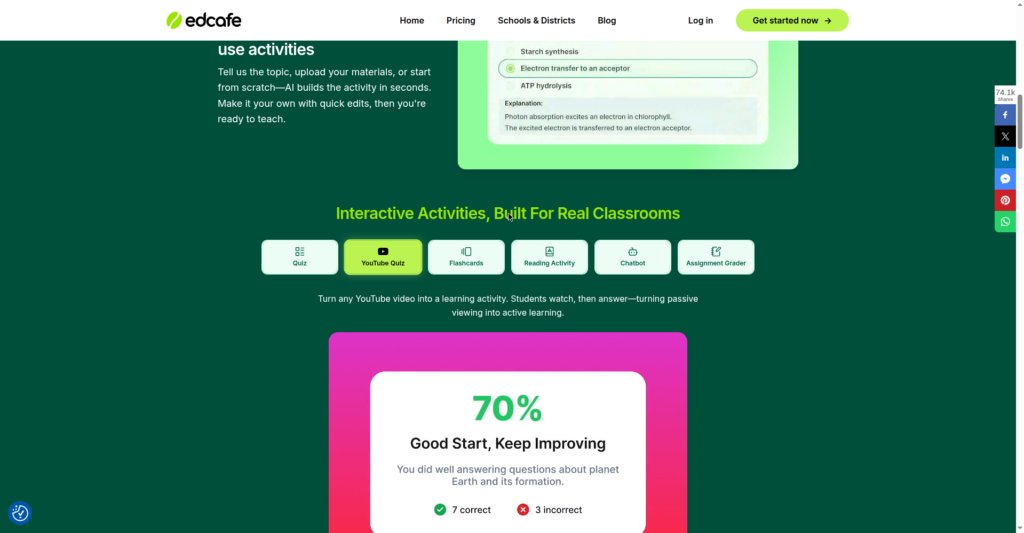
The free plan gives 100 AI generations a month — the clearest, most countable free tier on this list — and the YouTube quiz generator isn’t marked Pro-only. Sharing is painless: link or QR code, no student login, plus direct Google Classroom and Microsoft Teams assignment. Pro is $7.99/month billed annually (1,000 generations, 200 participants). Limits: YouTube-only, and I found no official video-length cap or transcript-quality statement — test your longest video before planning a unit around it.
Eduaide: powerful, but the YouTube feature costs money
Eduaide takes a different approach: add a YouTube video as source material, and it grounds anything you generate — lesson plan, worksheet, rubric, even a game — in that transcript. One video becomes a week’s resources that actually match it instead of drifting generic.
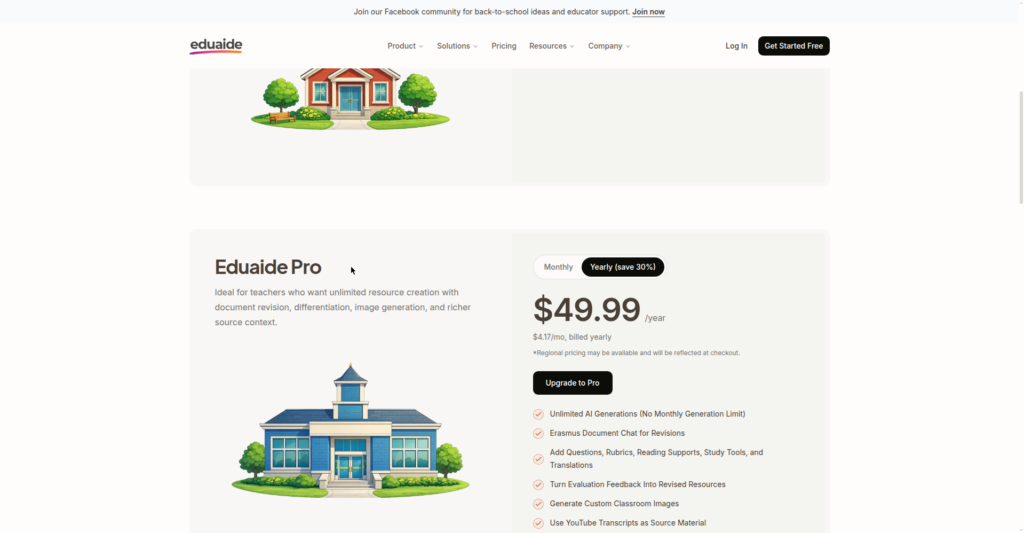
Staff-room honesty: YouTube-as-source is Pro-only ($49.99/year), and free-tier YouTube access isn’t stated anywhere I found — a real out-of-pocket cost for a feature four competitors include free. Great if your school already has Pro; not the one to buy yourself.
Diffit: not a quiz tool — a differentiation tool
Diffit is the odd one out, and I mean that as a compliment. It doesn’t make quizzes from videos — it makes leveled readings: a video becomes a reading passage adapted to whatever reading level you choose, plus key vocabulary, comprehension checks, and activity ideas like station rotations. For a class with a five-grade reading spread, that’s arguably more useful than another quiz.
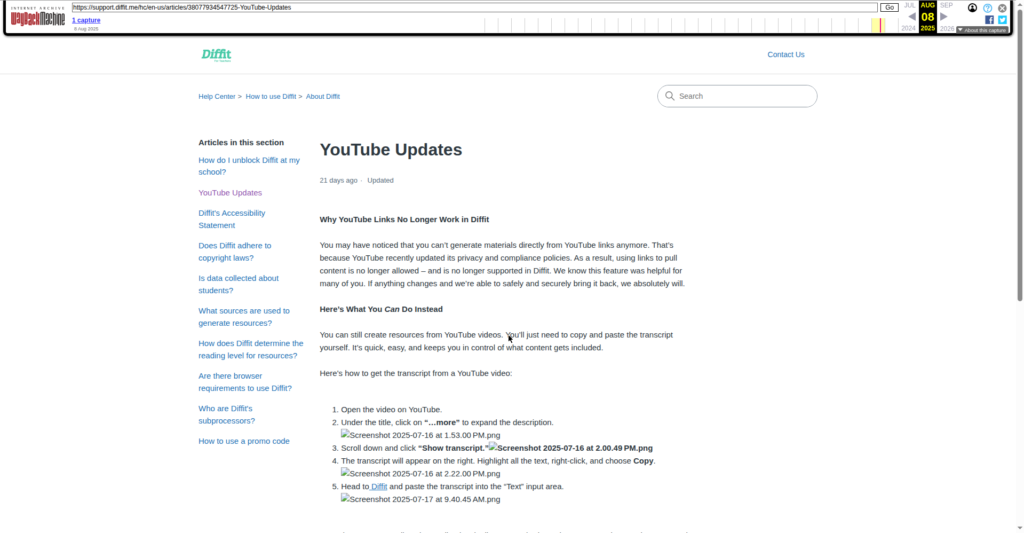
One honest update: Diffit’s own support article says direct YouTube-link generation no longer works — the documented route is manual: copy the transcript (“…” → “Open transcript”) and paste it into Diffit’s text input. The Chrome extension still lists YouTube among its sources, but I couldn’t verify that flow, so plan on the manual paste. Free tier: PDF, print, share (90-day window); Individual ($14.99/mo or $149.99/yr) unlocks Google and Microsoft exports. The trust point: zero student data collected, FERPA/COPPA stated outright — the line to show your admin.
Twee: the language teacher’s pick (video tools need Pro)
Twee is built for language teachers: paste a YouTube link for transcripts, summaries, gap-fill listening, and discussion questions at CEFR levels A1–C2. The “spot the two wrong summaries” activity is genuinely clever classroom design.
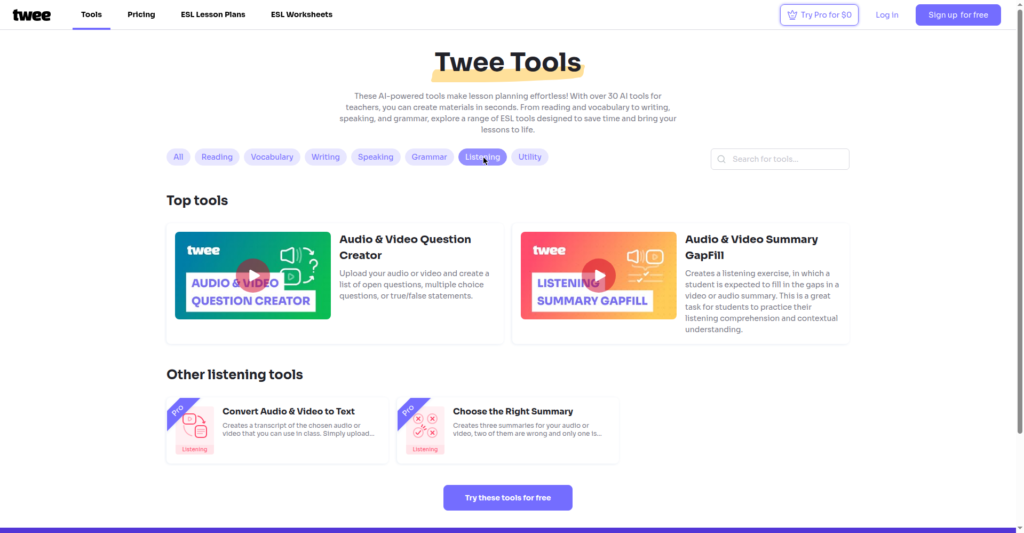
The catch: the media tools are Pro-only — $15/month (or $10.50/month billed annually), verified on their pricing page today. That buys 100 media-tool runs a month with a 10-minute limit: clips, not documentaries. Basic ($9/mo, $6.50 annual) excludes media tools entirely. Wonderful for its niche; the video features just aren’t in the cheap tier.
The 10-minute workflow: video to Classroom
The Sunday-evening routine for any AI lesson plan generator from YouTube video:
- Check captions first. Three dots under the video → “Open transcript.” Nothing there? Pick a different video. (Two minutes, saves twenty.)
- Choose your input. Already browsing? Brisk’s extension. Working from a link list? Paste into MagicSchool or EdCafe. Finicky transcript? Copy-paste it manually — delete the “uhhs” and the sponsor read first.
- Set grade level and count before generating. Do it now, not after, or you’ll regenerate twice like I would.
- Read every question before students see it. Auto-captions mishear things (“mitosis” becomes “my toast” — I’ve seen worse). This step separates a good AI workflow from an embarrassing one.
- Export where your class lives. Kahoot! → Brisk. Google Classroom → EdCafe assigns directly. Google Forms → MagicSchool or Brisk one-click.
Which tool for which subject
Quick picks: science → Brisk (guided notes + quiz + NGSS alignment); math → none is a specialist, but MagicSchool’s open-ended questions handle “explain your reasoning” best; history → Diffit (one documentary, three reading levels); ELA/ESL → Twee for listening and discussion, EdCafe for vocab quizzes with instant feedback; anything, fast → MagicSchool (paste, set grade, done).
Free-plan limits, honestly compared
No current top result publishes this table — so here it is:
| Tool | Free YouTube access | The real limit | What I’d watch out for |
|---|---|---|---|
| Brisk Teaching | Yes — Free Forever | No published per-day/month video count | Chrome/Edge only; paid is institutional |
| MagicSchool | Yes — Forever Free | Generation cap not published (third parties say limited) | Captions strictly required |
| EdCafe | Yes — 100 generations/mo | The clearest free tier here | YouTube only; no stated length cap |
| Eduaide | No — Pro only | $49.99/year minimum for the YouTube feature | Free tier’s YouTube access unconfirmed |
| Diffit | Yes — free tier | PDF/print/share only; 90-day content window | Google exports need paid |
| Twee | Effectively no — media tools are Pro-badged | Pro $15/mo or $10.50/mo annual; 100 media runs/mo | 10-min media limit on paid |
The privacy rule (don’t skip this)
Everything above uses your planning and public videos — the safest possible AI use. The rule from my no-sign-up guide stands: never paste student names, work, or anything identifiable into these tools. Feed them a YouTube transcript, not your gradebook. Diffit’s explicit FERPA/COPPA stance is the gold standard; with districts tightening AI rules, a zero-student-data workflow is one your admin can’t reasonably object to. If your district requires approved tools only, Brisk and MagicSchool both have school tiers built for that conversation.
FAQ: AI lesson plan generators from YouTube videos
Can AI turn a YouTube video into a lesson plan?
Yes — Brisk, MagicSchool, and EdCafe generate lesson plans, quizzes, and worksheets from a video’s transcript in minutes. Hard requirement: captions. No transcript, no lesson plan.
Which AI tool makes a quiz from a YouTube video for free?
Brisk Teaching (free forever, extension works on the YouTube page, up to 20 questions), MagicSchool (forever free, paste a link), and EdCafe (100 free generations/month, students answer while watching). Eduaide and Twee keep video tools behind paid tiers.
Do these tools actually watch the video?
No. They read the captions/transcript file and generate from that text — which is why auto-caption errors can produce odd questions. Always proofread before assigning; for important assessments, paste a cleaned-up transcript manually.
Can I use these if my students don’t have accounts?
Yes — EdCafe shares quizzes by link or QR code with no student login, and Diffit’s free tier is PDF/print. Brisk and MagicSchool export into Google Forms, Docs, or Kahoot!, which your students already use.
What if the video has no captions?
Transcript-based tools can’t process that video — pick a different one, or paste a summary you’ve written into a general chatbot for planning help. Auto-captions also fail on poor audio and overlapping speech, so spot-check the transcript.
Is it okay to use these under my district’s AI policy?
Usually yes — you’re generating your own planning materials from public videos, with zero student data involved: the lowest-risk AI use there is. Still, check your district’s specific rules; some restrict even teacher-side AI, as covered in the 2026 ban-wave guide.
Do I need a video with captions?
Yes — non-negotiable. Every tool here reads the captions file, not the video itself, so no captions means no lesson plan. Before you commit to a video, click the three dots under it and check “Open transcript.” Nothing there? Pick a different video — and skim the transcript anyway, because auto-captions mishear things.
Do these tools work with private or unlisted videos?
Use public videos. These tools grab the caption file from YouTube’s servers, and a private video’s captions aren’t reachable that way — if the tool can’t see the video, it can’t read its captions.
Should I review the AI output before teaching?
Always. Read every question before students see it: check for garbled transcript artifacts, the wrong grade level, and questions about things the video never actually said. Five careful minutes here is what separates a time-saver from a classroom embarrassment.
So which one should you try first?
If you want one answer: install Brisk’s extension and try it on the next video you were already going to show. Free, lives on the YouTube page, quiz before your coffee cools. If you want students answering while they watch, try EdCafe. Five reading levels in one room? Diffit was built for your Tuesday. The research says AI planning help genuinely saves time — the EEF trial found around 49 minutes a week. Go try one on tomorrow’s video — your 3rd-period class will thank you. Planning a full unit instead of a single video lesson? I tested 5 AI unit plan generators — not one let me in without an account.
Add TeachersTool as a Preferred Source in Google Search — open any of our articles in Google, tap the star/source icon, and choose TeachersTool. You’ll see our newest teacher-tested AI guides first.
Last updated: October 15, 2026. Features and prices were verified hands-on from official pages on October 15, 2026 and change fast — if you spot something outdated, let us know and we’ll re-test and correct it.
Get One Useful AI Tool Tip Every Week
One practical AI tool tip in your inbox every week. No spam, unsubscribe anytime.
See also: free AI lesson plan generators, tested and ranked — the full nine-tool comparison, with every free tier, sign-up requirement, and cost side by side.

We’re the team behind TeachersTool. We hands-on test AI tools for teachers — signing up for free plans, taking real screenshots, and fact-checking every claim before publishing. Our guides cover lesson planning, quiz creation, grading, and classroom AI workflows.
Enjoying TeachersTool guides?
Add us as a Preferred Source on Google — you'll see our latest tools and guides first in Search, Top Stories, and AI Overviews.