
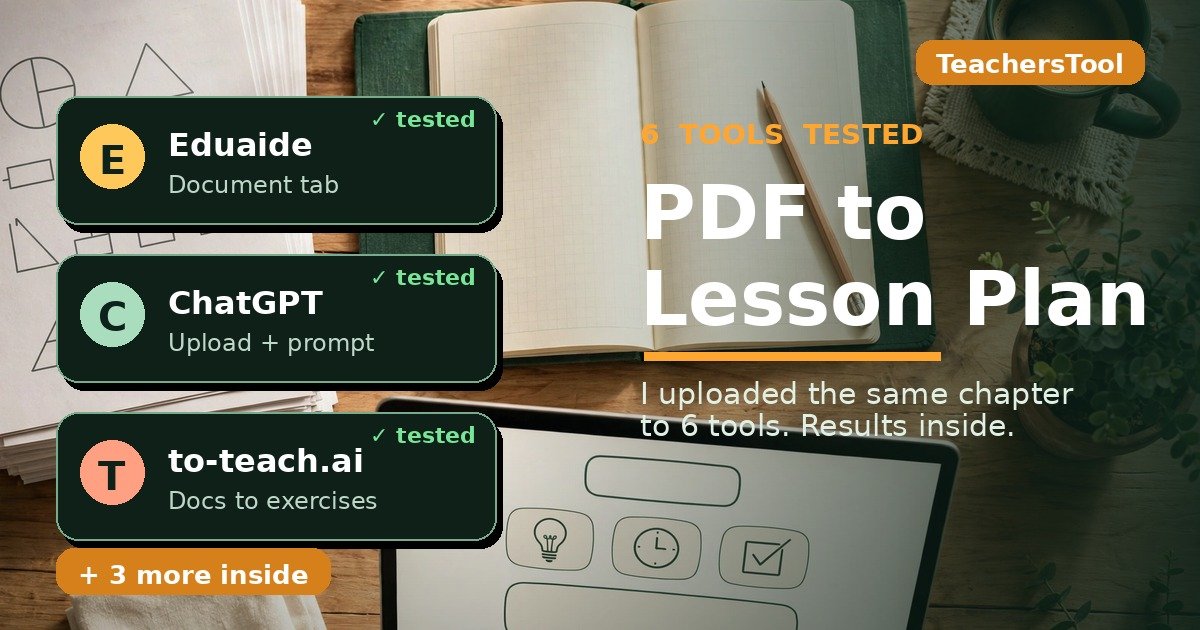
PDF to Lesson Plan Generator: I Tried 6 Tools With the Same Chapter — Here’s What Happened
Last Tuesday, 9:40 PM: a textbook chapter on the water cycle, a free period gone sideways, and a lesson plan due by morning. I googled “PDF to lesson plan generator” and started clicking.
A PDF to lesson plan generator reads your uploaded textbook chapter or worksheet PDF and turns it into a structured lesson plan — objectives, activities, timing, assessments. I tested six tools with the same two-page chapter: none let me upload a PDF without creating an account, and only Diffit even showed an upload button anonymously. Once signed in, all six offer this workflow, with free plans from 2 lesson plans to 24 credits a month.
In this guide: what happened when I tried uploading the same PDF to Eduaide, to-teach.ai, Diffit, StudyFetch, ChatGPT, and Microsoft Copilot Classwork without signing in; each tool’s real free-plan limits from their pricing pages; my 10-minute chapter-to-5E-plan workflow; notes for science, math, history, and ESL; and the honest FERPA picture.

- No tool tested works with zero sign-up. All six showed a hard signup wall; Diffit’s free app is the lone exception showing an “Upload PDF” button without a login.
- Signed in, Eduaide and to-teach.ai are the strongest purpose-built picks. Eduaide’s free plan: 24 generation credits/month (up to 8 lesson plans); to-teach.ai’s: 2 lesson plans/month, but it also turns documents into exercises and worksheets.
- Microsoft Copilot’s Classwork flow is the sleeper option if your school runs Microsoft 365 — it takes PDFs, Word docs, and text files, and aligns to standards.
- StudyFetch has no public pricing page — the free plan’s limits aren’t stated anywhere I could find.
- Only ChatGPT’s free tier trains on your data by default — its footer says chats “may be reviewed and used to improve our AI models.” Strip student names from anything you upload.
On October 18, 2026, I made a two-page sample chapter (“The Water Cycle,” Grade 5) and saved it as a PDF. Then I visited six tools that turn documents into lesson plans and tried the real upload flow on each without signing in first. I recorded exactly where each one stopped me, copied the signup-wall text word for word, and read every pricing page the same day. No accounts were created, so this measures access and honest free-plan terms — not each tool’s generated-plan polish. Prices verified October 18, 2026; they change fast.
The short answer: it works — but not without an account
Here’s the part nobody’s ranking page tells you: every comparison I found was a vendor’s own page or a directory listing. Nobody had actually tried the upload button. So I did — and the headline is blunt: 0 out of 6 tools let me upload a PDF and get a lesson plan without an account.
That’s actually useful information. It means this category is “sign in once, then it works” — not a quick anonymous trick like some no-sign-up tools I’ve covered before (my no-sign-up lesson plan test found several that worked instantly). The real question: which free account is worth two minutes of your evening?
What happened with each tool
| Tool | Anonymous upload? | What stopped me | Free plan (verified Oct 18, 2026) |
|---|---|---|---|
| Eduaide | No | Hard redirect to sign-in | 24 generation credits/month; up to 8 lesson plans/month; limited upload context |
| to-teach.ai | No | “An account is required for this function” | $0/month: 5 exercises, 3 worksheets, 2 lesson plans/month |
| Diffit | Almost | Upload button visible, no login wall — file transfer failed in my browser | Basic (free): classroom-ready content, PDF download, 90-day history |
| StudyFetch | No | “Try for free” goes straight to signup | No public pricing page — limits not stated |
| ChatGPT | No | “Add files. Log in to use.” | $0: unlimited text chats, “limited messages with uploads” |
| Microsoft Copilot (Classwork) | No | Full-page “Sign into Copilot” gate | Free with a signed-in Microsoft account; lesson-plan feature needs M365 for Education |
1. Eduaide — the strongest document tab, once you’re in
Clicking “Generate a lesson plan” bounced me to sign-in: “Sign in to Eduaide” / “New here? Signing in creates your free account. No card needed.” — a one-time email link or Continue with Google. Worth it: “Always free with generation limits” — 24 generation credits and up to 8 lesson plans a month, no credit card. The catch: free has “limited input context for topics, standards, and uploaded documents,” so long chapters may get trimmed. Pro ($49.99/year = $4.17/month billed yearly) removes the cap and allows 3 uploaded documents — the cheapest paid upgrade here. Privacy is the cleanest of the bunch: “We never have and never will share or sell your data to third parties”, and they don’t collect student data.
2. to-teach.ai — built for documents, tight free tier
One of the few tools whose homepage talks about documents specifically — texts, videos, and documents become exercises, worksheets, and lesson plans, with ESL-friendly language levels. The anonymous page shows the full form with an “Attach curriculum” button — until you click it: “An account is required for this function.” The free plan is the tightest of the six: $0/month for 5 exercises, 3 worksheets, and 2 lesson plans. A tasting menu, not a workflow: Starter $6/month ($5/month billed yearly); Pro $12/month ($10/month billed yearly). Best for ESL teachers — language-level personalization and document-to-exercise formats (crosswords, mind maps) go beyond a plain lesson plan.
3. Diffit — the only one that let me get close without signing in
Diffit’s free app showed an “Attach” menu with “Upload PDF / Up to 50MB,” “Upload Image,” “Paste a Link,” and “Choose a Book” — no login gate anywhere. The only tool here where the upload button was genuinely reachable anonymously. The honest caveat: I couldn’t complete the file transfer — the button triggers the browser’s native file picker through a hidden element my testing setup couldn’t reach, so the PDF never went up. A limit of my test, not necessarily of Diffit. The free “Basic” plan promises classroom-ready content, PDF download, and 90-day history, with no numeric cap stated. Privacy: “No student logins, no student AI… DPA compliance” — students never touch the tool.
4. StudyFetch — promising, but the pricing is a black box
Clicking “Try for free” went straight to signup — “Create your account,” Google or email, agree to the terms. No anonymous anything. Worse: StudyFetch has no public pricing page — the pricing and FAQ URLs returned 404s, so I can’t tell you what “free” gets you, and I’d rather say that than guess. Their footer carries a “COPPA, EDSAFE AI, and FERPA compliant” badge, which is reassuring as far as it goes. If you try it, test the free tier first and check the limits before building a workflow around it.
5. ChatGPT — the familiar route, with a login and a data trade
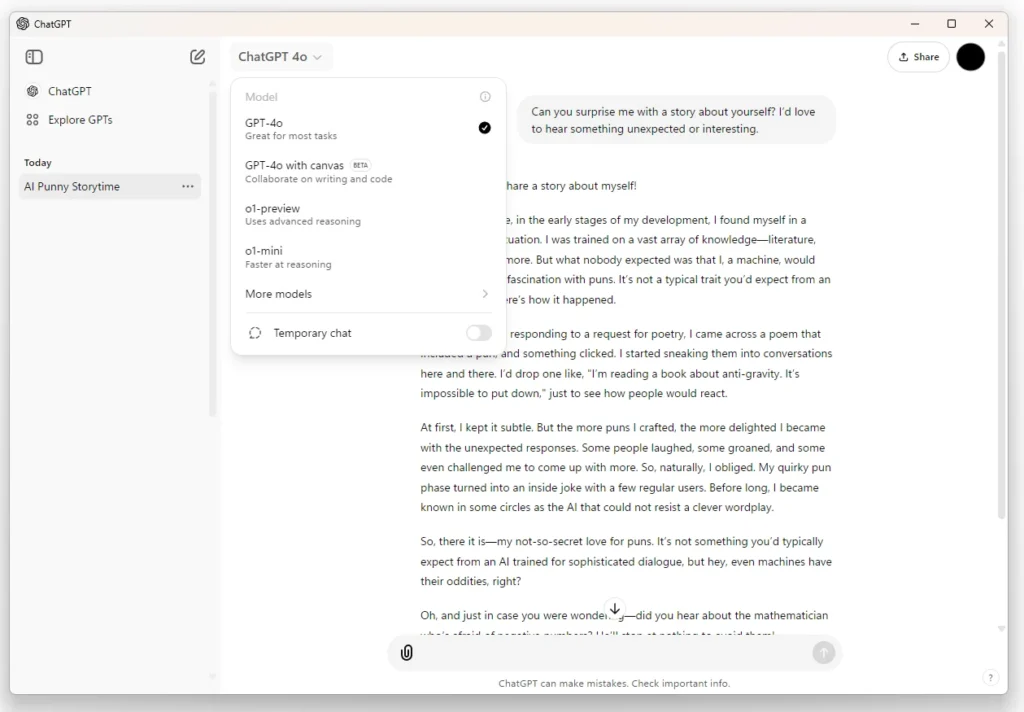
Anonymous chat loads fine, but the “+” menu lists “Add files” as greyed-out “Add files. Log in to use.” — clicking opens a login dialog: “You’ll get smarter responses and can upload files, images, and more.” The free plan ($0) gives unlimited text chats but only “limited messages with uploads” (number unpublished), so batch your chapters. The trade: ChatGPT’s footer states “Chats may be reviewed and used to improve our AI models.” None of the other five say anything like that — several explicitly promise the opposite. Never upload a PDF with student names, grades, or IEP details into free ChatGPT; strip the identifiers first.
6. Microsoft Copilot in Classwork — the sleeper pick for Microsoft schools
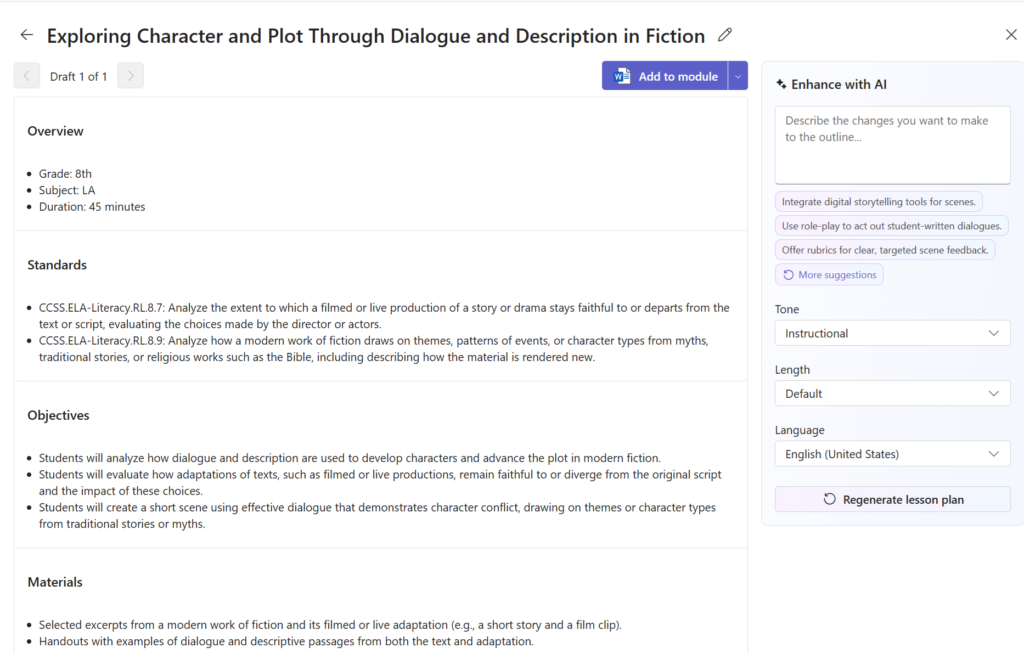
This topped Google’s results for my search, and it’s the only result that’s an official how-to rather than a vendor pitch. Microsoft documents a “Create with Copilot” lesson-plan flow inside Classwork in Teams for Education: open Classwork, hit +, choose “Create with Copilot,” pick “Lesson plan,” enter subject, grade, and a 20+ character description — then “Add content (Optional)”: upload or link materials from OneDrive, SharePoint, or Teams, with Word (.docx), PDF, and text (.txt) supported. Align to standards, set the duration, generate. I couldn’t click through it — copilot.com shows a full-page “Sign into Copilot” gate, and the feature needs a Faculty/Staff M365 for Education license (ask your IT admin). But if your school already lives in Teams, it’s the path of least resistance: your chapters are probably already in OneDrive, and there’s no new vendor to vet.
Free-plan limits, side by side
| Tool | Free plan price | What free actually gives you | Cheapest paid tier |
|---|---|---|---|
| Eduaide | $0 | 24 generation credits/month; up to 8 lesson plans/month; limited upload context | $49.99/year ($4.17/mo billed yearly) |
| to-teach.ai | $0 | 5 exercises, 3 worksheets, 2 lesson plans/month | $6/month ($5/mo billed yearly) |
| Diffit | $0 (Basic) | Classroom-ready content; PDF download/print; 90-day content history; no stated numeric cap | Diffit for Schools (custom/district) |
| StudyFetch | Unknown | No public pricing page — limits not stated | Unknown |
| ChatGPT | $0 | Unlimited text chats; “limited messages with uploads” (number not published) | Go/Plus/Pro tiers (prices on their pricing page) |
| Microsoft Copilot | $0* | Free with Microsoft account; Classwork lesson-plan flow needs M365 for Education license | Varies by school license |
*Free with a signed-in Microsoft account; the school-side features depend on your district’s license. (MagicSchool also offers an “Add File” lesson-plan option with a “Forever Free” 80+ tool plan — it needs an educator account, so it sat out the anonymous test; Plus is $8.33/user/month billed annually.)
The 10-minute workflow: chapter to 5E lesson plan
Whichever tool you pick, the workflow is the same. Here’s the one I’d hand a colleague in the staff room:
- Prep the PDF (2 minutes). Strip student names, grades, or IEP notes from annotated copies. If the chapter is a 40-page scan, pull just the pages you’re teaching — tools read the first chunk best, and free tiers trim long context.
- Upload and set the frame (2 minutes). Upload the PDF, then type a real objective: “Students will explain how evaporation and condensation move water through the cycle” beats “water cycle lesson.” Set grade level and length.
- Ask for the structure you want (1 minute). Request a 5E plan by name — Engage, Explore, Explain, Elaborate, Evaluate. Generic “make a lesson plan” gives a generic plan; naming the framework is the whole trick.
- Check it against the chapter (3 minutes). Read the plan with your PDF open and verify every vocabulary term and “fact” appears in your chapter — AI tools are confident even when inventing.
- Fix the timing (2 minutes). AI plans are always too ambitious for one period. Cut one activity now instead of discovering it mid-class.

Does this work for subjects beyond science?
The chapter-to-plan trick is subject-agnostic — what changes is what you ask for. Math: upload the worked-examples page and ask for guided practice plus common-misconception checks (“where do students usually go wrong with fractions here?”). History/ELA: upload the primary source and ask for a discussion-based plan with text-dependent questions at different depths — then pick three and drop the rest. ESL: to-teach.ai’s home turf — ask for vocabulary pre-teaching at your students’ CEFR level plus sentence frames.
Before you upload: the FERPA and privacy part
This is the section I’d be annoyed at myself for skipping. When you upload a PDF, you’re handing a file to someone’s servers, so what they promise matters. In their own words:
- Eduaide: “We never have and never will share or sell your data to third parties.” Teacher-facing; no student data collected.
- MagicSchool: “We don’t use student or teacher data to train AI.” SOC 2–certified, FERPA/COPPA-compliant.
- Diffit: “No student logins, no student AI,” DPA-compliant — students never touch the tool.
- StudyFetch: footer badge: “COPPA, EDSAFE AI, and FERPA compliant.”
- ChatGPT (free): “Chats may be reviewed and used to improve our AI models.” The outlier — act accordingly.
- Microsoft Copilot: school data stays inside your district’s Microsoft 365 boundary.
My practical rules: never upload a PDF containing student names, grades, or IEP/504 details to any free consumer tool. If your district has an approved-tools list, check it first — Florida’s 2026 rules made the list mandatory statewide (I wrote about the shifting landscape in my guide to the 2026 school AI ban wave). When in doubt, the anonymized chapter — content only, no names — is safe everywhere.

Frequently asked questions
Is there a PDF to lesson plan generator with no sign-up?
Not one I could verify. I tried six tools anonymously on October 18, 2026: five showed hard signup walls. Diffit showed an upload button without a login — though I couldn’t complete a transfer in my setup. It’s the only one worth trying first for anonymous use.
Can ChatGPT turn a PDF into a lesson plan?
Yes, with a free account — anonymous chat blocks uploads (“Add files. Log in to use.”). The free plan includes “limited messages with uploads” (OpenAI doesn’t publish the number), and free-tier chats “may be reviewed and used to improve our AI models,” so strip student names first.
Which free PDF to lesson plan tool gives you the most?
Eduaide’s free tier is the most generous I verified: 24 generation credits a month and up to 8 lesson plans, no credit card. Diffit’s free Basic plan has no stated numeric cap. to-teach.ai’s free tier is the tightest at 2 lesson plans a month.
Is it FERPA-compliant to upload lesson materials to these tools?
Uploading your own curriculum content is generally fine. The FERPA risk comes from student names, grades, or IEP details in the file — never upload those to free consumer tools. Eduaide, MagicSchool, Diffit, and StudyFetch all publish FERPA/COPPA-related commitments; ChatGPT’s free tier is the outlier, stating chats “may be reviewed and used to improve our AI models.”
The bottom line: which one should you try first?
If I were starting from zero tonight: in Microsoft Teams already? Use Copilot Classwork — no new accounts, your files are already there. Most generous free tier? Eduaide — 24 credits a month, cleanest privacy statement, two-minute email signup. Teaching ESL? to-teach.ai — but the free tier is 2 plans a month. Allergic to signups? Try Diffit’s upload button — the only door that was even ajar. Want the familiar route? ChatGPT — strip the student names first.

The unglamorous truth: the “PDF to lesson plan” category is real and useful, but it’s sign-in-once, not an anonymous trick. Pick one, give it your actual next chapter — not a demo file — and judge it on the plan it makes from your material. That’s the only test that counts.
Add TeachersTool as a Preferred Source in Google Search — open any of our articles in Google, tap the star/source icon, and choose TeachersTool. You’ll see our newest teacher-tested AI guides first.
Last updated: October 18, 2026. Features and prices were verified hands-on from official pages on October 18, 2026 and change fast — if you spot something outdated, let us know and we’ll re-test and correct it.
Get One Useful AI Tool Tip Every Week
One practical AI tool tip in your inbox every week. No spam, unsubscribe anytime.
See also: free AI lesson plan generators, tested and ranked — the full nine-tool comparison, with every free tier, sign-up requirement, and cost side by side.

We’re the team behind TeachersTool. We hands-on test AI tools for teachers — signing up for free plans, taking real screenshots, and fact-checking every claim before publishing. Our guides cover lesson planning, quiz creation, grading, and classroom AI workflows.
Enjoying TeachersTool guides?
Add us as a Preferred Source on Google — you'll see our latest tools and guides first in Search, Top Stories, and AI Overviews.